Table of Contents
This documentation is for an OpenFlight Labs Project which is in maintenance mode
Overview
Flight Desktop enables systems to launch graphical desktop sessions to support users who want to run interactive applications across the research environment. The system can support a number of different sessions simultaneously, and allow multiple remote participants to connect to the same session to support training and collaborative activities. This section of the documentation describes how to setup and use this tool.
Preparing a Desktop Type
View Available Types
Your research environment supports many types of graphical session designed to provide interactive applications directly to users. To view the available types of session, use the command flight desktop avail:
[flight@chead1 (mycluster1) ~]$ flight desktop avail
┌───────┬──────────────────────────────────────────────────┬────────────┐
│ Name  │ Summary                                          │ State      │
├───────┼──────────────────────────────────────────────────┼────────────┤
│ gnome │ GNOME v3, a free and open-source desktop         │ Unverified │
│       │ environment for Unix-like operating systems.     │            │
│       │                                                  │            │
│       │  > https://www.gnome.org/                        │            │
│       │                                                  │            │
│ kde   │ KDE Plasma Desktop (KDE 4). Plasma is KDE's      │ Unverified │
│       │ desktop environment. Simple by default, powerful │            │
│       │ when needed.                                     │            │
│       │                                                  │            │
│       │  > https://kde.org/                              │            │
│       │                                                  │            │
│ xfce  │ Xfce is a lightweight desktop environment        │ Unverified │
│       │ for UNIX-like operating systems. It aims to be   │            │
│       │ fast and low on system resources, while still    │            │
│       │ being visually appealing and user friendly.      │            │
│       │                                                  │            │
│       │  > https://xfce.org/                             │            │
│       │                                                  │            │
└───────┴──────────────────────────────────────────────────┴────────────┘
[flight@chead1 (mycluster1) ~]$
Application types that are unverified need to be prepared before they can be started.
Preparing a Type
To prepare a new session type, use the command flight desktop prepare <type> (preparing will automatically install any required application and support files, if these dependencies have been installed manually then a desktop session can be checked for verification with flight desktop verify <type>). Once enabled, users can start a new session using the command flight desktop start <type>.
The
preparecommand is only available to therootuser as it requires installation of packages
Preparing a new session type only enables it for the machine that you run the command from, any other nodes will need to have the type enabled too.
Using sudo to prepare
Since only the root user can use prepare, you also cannot use sudo to run prepare.
Instead the user must become the root user and enable the Flight system then run prepare.
Launch a Desktop Session
Users can launch a new session by using the flight desktop start gnome command. After launching the desktop, a message will be printed with connection details to access the new session:
Starting a 'gnome' desktop session:

   > ✅ Starting session

A 'gnome' desktop session has been started.

== Session details ==
      Name:
  Identity: 4549eae1-6f8b-4983-8057-99b378afcdd3
      Type: gnome
   Host IP: 51.104.217.61
  Hostname: chead1
      Port: 5901
   Display: :1
  Password: mkO3Zxjl
  Geometry: 1024x768

This desktop session is not directly accessible from outside of your
cluster as it is running on a machine that only provides internal
cluster access.  In order to access your desktop session you will need
to perform port forwarding using 'ssh'.

Refer to 'flight desktop show 4549eae1' for more details.

If prompted, you should supply the following password: mkO3Zxjl
Users need a VNC client to connect to the graphical desktop session.
Users with Mac clients can use the URL provided in the command output to connect to the session; e.g. from the above example, simply enter vnc://flight:mkO3Zxjl@51.104.217.61:5901 into the Safari address bar.
Linux and Windows users should enter the IP address and port number shown into their VNC client in the format IP:port. For example - for the output above, Linux and Windows client users would enter 51.104.217.61:5901 into their VNC client:
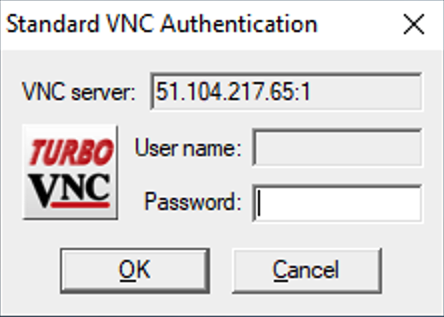
A one-time randomized password is automatically generated by the flight system when a new session is started. Linux and Windows users may be prompted to enter this password when they connect to the desktop session.
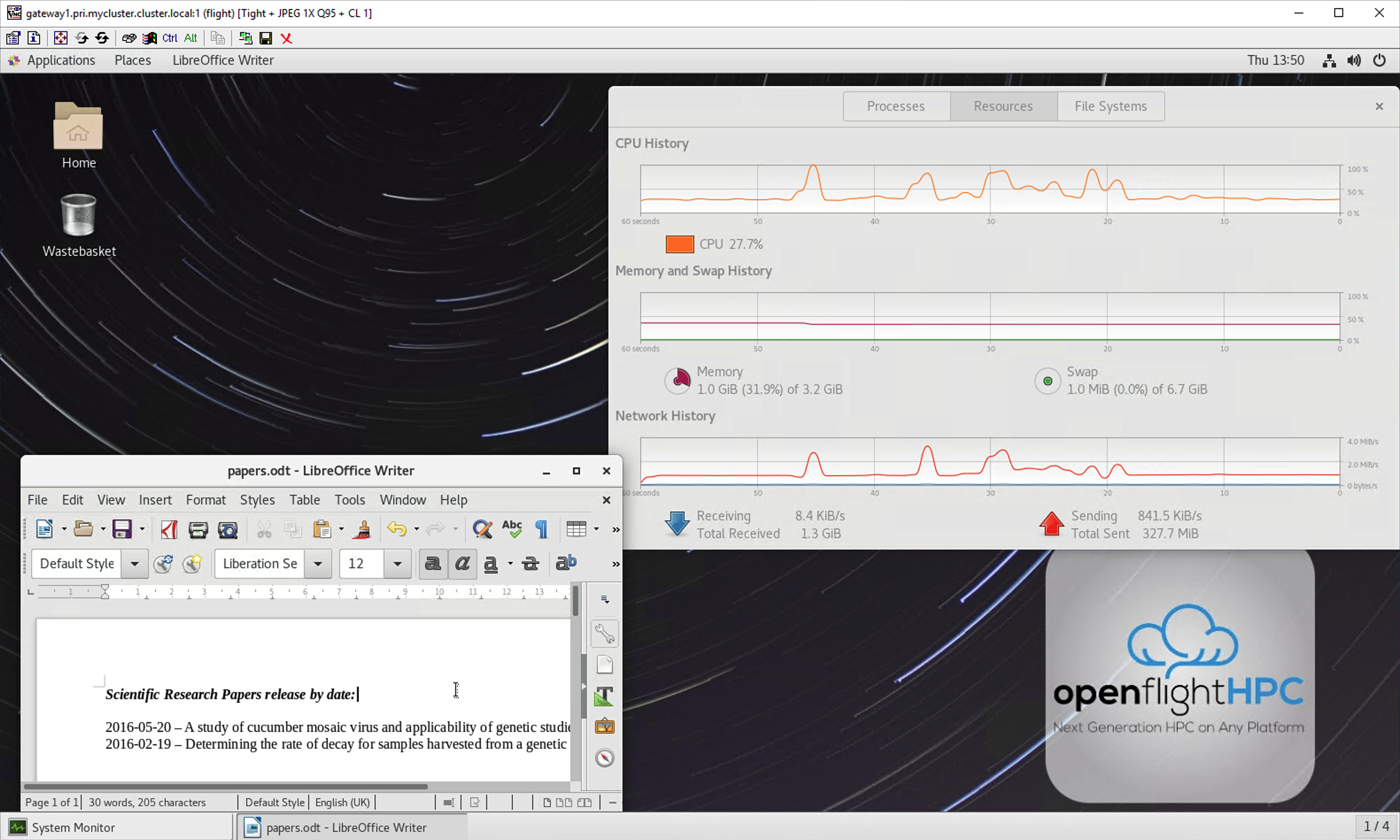
Once connected to the graphical desktop, users can use the session as they would a local Linux machine:
Port Forwarding a Desktop Session
Depending on your connection to the HPC you may see this message when starting a desktop session:
This desktop session is not directly accessible from outside of your
cluster as it is running on a machine that only provides internal
cluster access.  In order to access your desktop session you will need
to perform port forwarding using 'ssh'.
For example in the following:
[flight@chead1 (mycluster1) ~]$ flight desktop start gnome
Starting a 'gnome' desktop session:

   > ✅ Starting session

A 'gnome' desktop session has been started.

== Session details ==
      Name:
  Identity: dd8acf76-1494-4c88-adb1-a8bbd405d965
      Type: gnome
   Host IP: 20.68.202.163
  Hostname: chead1
      Port: 5903
   Display: :3
  Password: WB3gUQMW
  Geometry: 1024x768

This desktop session is not directly accessible from outside of your
cluster as it is running on a machine that only provides internal
cluster access.  In order to access your desktop session you will need
to perform port forwarding using 'ssh'.

Refer to 'flight desktop show dd8acf76' for more details.

If prompted, you should supply the following password: WB3gUQMW
By running the command flight desktop show <name> we can see more information
[flight@chead1 (mycluster1) ~]$ flight desktop show dd8acf76

== Session details ==
      Name:
  Identity: dd8acf76-1494-4c88-adb1-a8bbd405d965
      Type: gnome
   Host IP: 20.68.202.163
  Hostname: chead1
      Port: 5903
   Display: :3
  Password: WB3gUQMW
  Geometry: 1024x768

This desktop session is not directly accessible from outside of your
cluster as it is running on a machine that only provides internal
cluster access.  In order to access your desktop session you will need
to perform port forwarding using 'ssh':

  ssh -L 5903:20.68.202.163:5903 flight@

Once the ssh connection has been established, depending on your
client, you can connect to the session using one of:

  vnc://flight:WB3gUQMW@localhost:5903
  localhost:5903
  localhost:3

If, when connecting, you receive a warning as follows, try again with
a different port number, e.g. 5904, 5905 etc.:

  channel_setup_fwd_listener_tcpip: cannot listen to port: 5903

If prompted, you should supply the following password: WB3gUQMW
Windows
On Windows, the desktop environment can still be connected like so:
-
Begin your environment as demonstrated on the previous page.
-
Note down the IP address, port number and password.
-
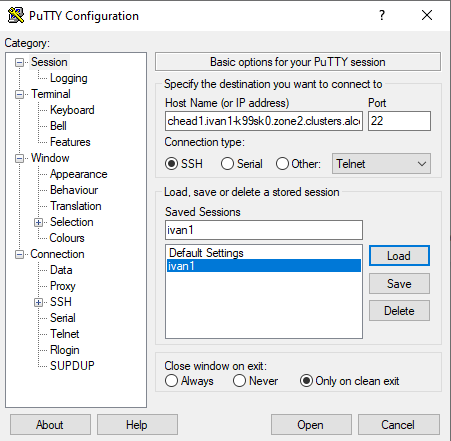
Open PuTTy
-
Load one of your saved sessions or save a new session with your log in details.
-
Find the “Category:” section on the left of the window
-
Scroll down to “Connection” and expand it.
-
Scroll down to “SSH” and expand it.
-
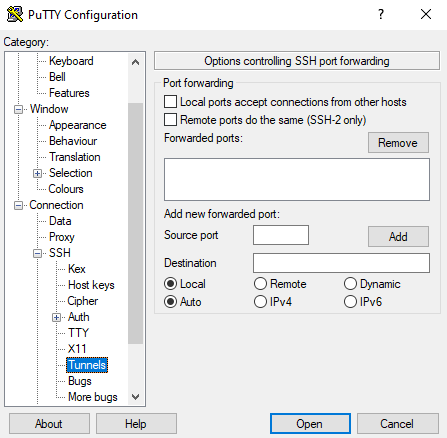
Click on the “Tunnels page.
-
-
Input the source port (a local port) and destination which is
IP address:port numberof the desktop environment that was started.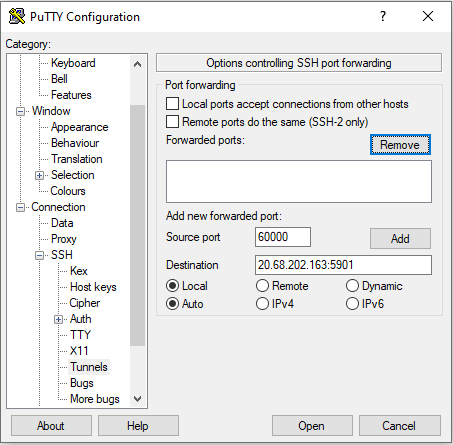
-
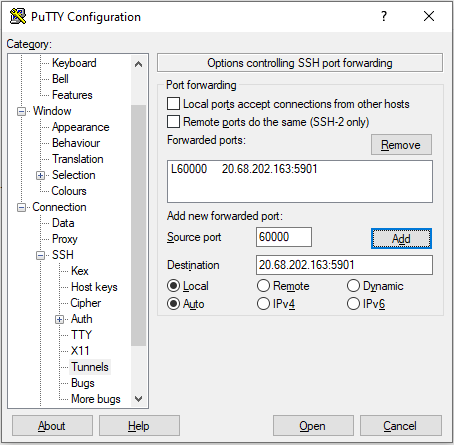
After inputting the information, click “Add” and the details will move to a box above.
-
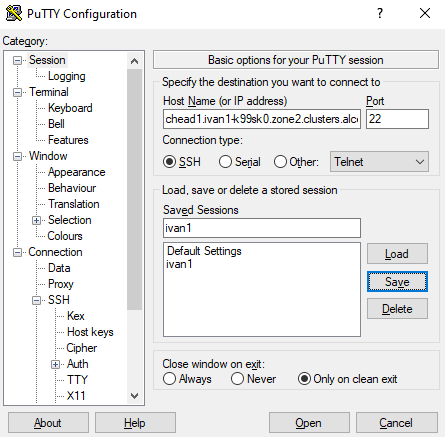
Scroll back to the top of the “Category:” section, and click on “Session”
-
Save the session and then click open to run the command line interface and log in.
-
Open your VNC client, and type
localhost:XXXXXwhereXXXXis the source port number you entered earlier.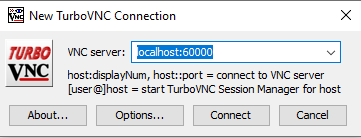
-
Click “Connect”, and if prompted enter the password you noted down.
Linux/Mac
The steps for connecting with Linux/Mac are outlined in the output of the flight desktop show command above.
Resizing a Desktop Session
When launching a graphical desktop session using the flight desktop utility, a session resolution can be specified using the --geometry <size> option. For example, to launch a gnome desktop session with a resolution of 1920x1080 pixels, use the command:
flight desktop start --geometry 1920x1080 gnomeBy default, your graphical desktop session will launch with a compatibility resolution of 1024x768. For example, to change the default resolution to 1920x1080 pixels, use the command:
flight desktop set geometry 1920x1080Users can resize the desktop to fit their screens using the command flight desktop resize <session id> <resolution>. For example:
flight desktop resize 4549eae1 1920x1080Your graphical desktop session will automatically resize to the new resolution requested. Use your local VNC client application to adjust the compression ratio, colour depth and frame-rate sessions in order to achieve the best user-experience for the desktop session.
Viewing and Terminating Sessions
Users can view a list of the currently running sessions by using the command flight desktop list.
[flight@chead1 (mycluster1) ~]$ flight desktop list
┌──────┬──────────┬───────┬───────────┬───────────────┬────────────────┬──────────┬────────┐
│ Name │ Identity │ Type  │ Host name │ IP address    │ Display (Port) │ Password │ State  │
├──────┼──────────┼───────┼───────────┼───────────────┼────────────────┼──────────┼────────┤
│      │ 4549eae1 │ gnome │ chead1    │ 20.68.202.163 │ :1 (5901)      │ mkO3Zxjl │ Active │
│      │ 52e44bdd │ gnome │ chead1    │ 20.68.202.163 │ :3 (5903)      │ 5eAlaST0 │ Active │
│      │ abbbe30b │ gnome │ chead1    │ 20.68.202.163 │ :2 (5902)      │ XLH7bV30 │ Active │
└──────┴──────────┴───────┴───────────┴───────────────┴────────────────┴──────────┴────────┘
To display connection information for an existing session, use the command flight desktop show <session-ID>. This command allows users to review the IP-address, port number and one-time password settings for an existing session.
[flight@chead1 (mycluster1) ~]$ flight desktop show 4549eae1

== Session details ==
      Name:
  Identity: 4549eae1-6f8b-4983-8057-99b378afcdd3
      Type: gnome
   Host IP: 20.68.202.163
  Hostname: chead1
      Port: 5901
   Display: :1
  Password: mkO3Zxjl
  Geometry: 1024x768

This desktop session is not directly accessible from outside of your
cluster as it is running on a machine that only provides internal
cluster access.  In order to access your desktop session you will need
to perform port forwarding using 'ssh':

  ssh -L 5901:20.68.202.163:5901 flight@

Once the ssh connection has been established, depending on your
client, you can connect to the session using one of:

  vnc://flight:mkO3Zxjl@localhost:5901
  localhost:5901
  localhost:1

If, when connecting, you receive a warning as follows, try again with
a different port number, e.g. 5902, 5903 etc.:

  channel_setup_fwd_listener_tcpip: cannot listen to port: 5901

If prompted, you should supply the following password: mkO3Zxjl
Users can terminate a running session by ending their graphical application (e.g. by logging out of a Gnome session, or exiting a terminal session), or by using the flight desktop kill <session-ID> command. A terminated session will be immediately stopped, disconnecting any users.
flight desktop kill 4549eae1Securing your Desktop Session
As the VNC protocol does not natively provide support for security protocols such as SSL, you may wish to take steps to secure access to your VNC sessions.
Several third party tools exist to help you secure your VNC connections. One option is ssvnc, available here.
Alternatively, you could use an SSH tunnel to access your session. Refer to online guides for setup instructions.